
How to enroll your Salespath tablet.
About Enrollment
New tablets that are sent out use a self-serve enrollment process. Enroll your tablets so you can get started using Salespath as soon as possible!
1. Enter Tablet Enrollment Code
When accessing the application on the tablet for the first time, you will be presented with the following screen:

Here, you will input your unique 6-digit enrollment code.
To access your enrollment code:
| Available to: Admins, Site Managers |
- Log into the Salespath web application.
- Click Settings > Hardware Management > Enrolled Tablets.
- In the top left corner you will see a box containing your unique 6-digit enrollment code. Copy that code and enter it on the tablet.
2. Select a Location
After inputting the enrollment code, a location must be selected.
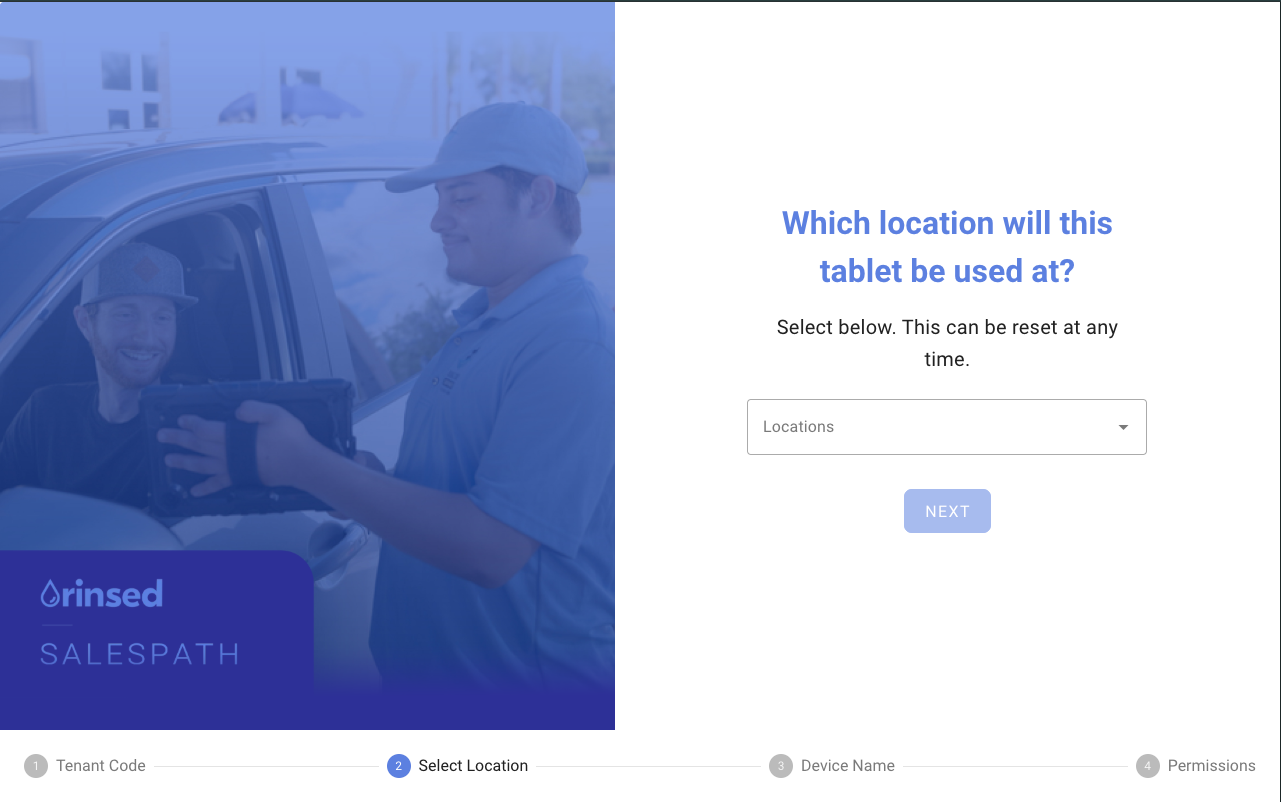
All of your locations will appear in the dropdown. A location must be selected before moving to the next step. Alternatively, select All Locations if this is a "floater tablet" (see below).
💡 Rinsed Tip: If you would like to have "floater tablets" that can be used at all locations, our team can enable an All Locations option for your tablet enrollment. When enabled, this will require the user to select a Location each time they log into the tablet. We typically recommend enrolling each tablet at a specific location to avoid potential user error. Please contact Customer Support (support@rinsed.co) to enable this option for your team. |
3. Set a Friendly Name
Next, you'll enter a name for this device that makes it easy to recognize.

4. Grant Permissions
Finally, you will give the required permissions to the app.

Press the ALLOW ACCESS button and accept the prompts given.
Once this is complete, the device is configured for your wash and selected location. From here on out, the device will automatically redirect to the correct URL for your account.
Connecting Card Readers - Driveway Checkout only
1. Ensure the Card Reader is Securely Attached to the Tablet
If the card reader is already attached skip to step 2.
With Adhesive:
Clean the back of the tablet case and the back of the reader.
Apply the adhesive strip to the case, near the USB port on the tablet.
Note: Ensure the card reader is facing with the card swipe outwards
Press firmly together for 20 to 30 seconds.
Allow adhesive to set for a few minutes before use.
2. Connect the Cable to the Reader
Plug the USB cable firmly into the VP3350.
Plug the other end of the cable into the tablet.
You should also see a blinking green light on the reader once connected successfully
The reader draws power through the cable and will be powered on and ready for use when connected properly. If the reader does not appear active:
Confirm the cable is fully seated on both ends.
Check that the tablet has sufficient power.
Try a different cable if available.
Comments
0 comments
Article is closed for comments.